Location settings
Where to find business details, hours, booking page settings, and notification preferences for each location.
All location-specific configuration lives under Settings. The page is split into two groups in the left sidebar:
- Business: settings that apply to your whole business (all locations).
- This Location: settings for the current location only.
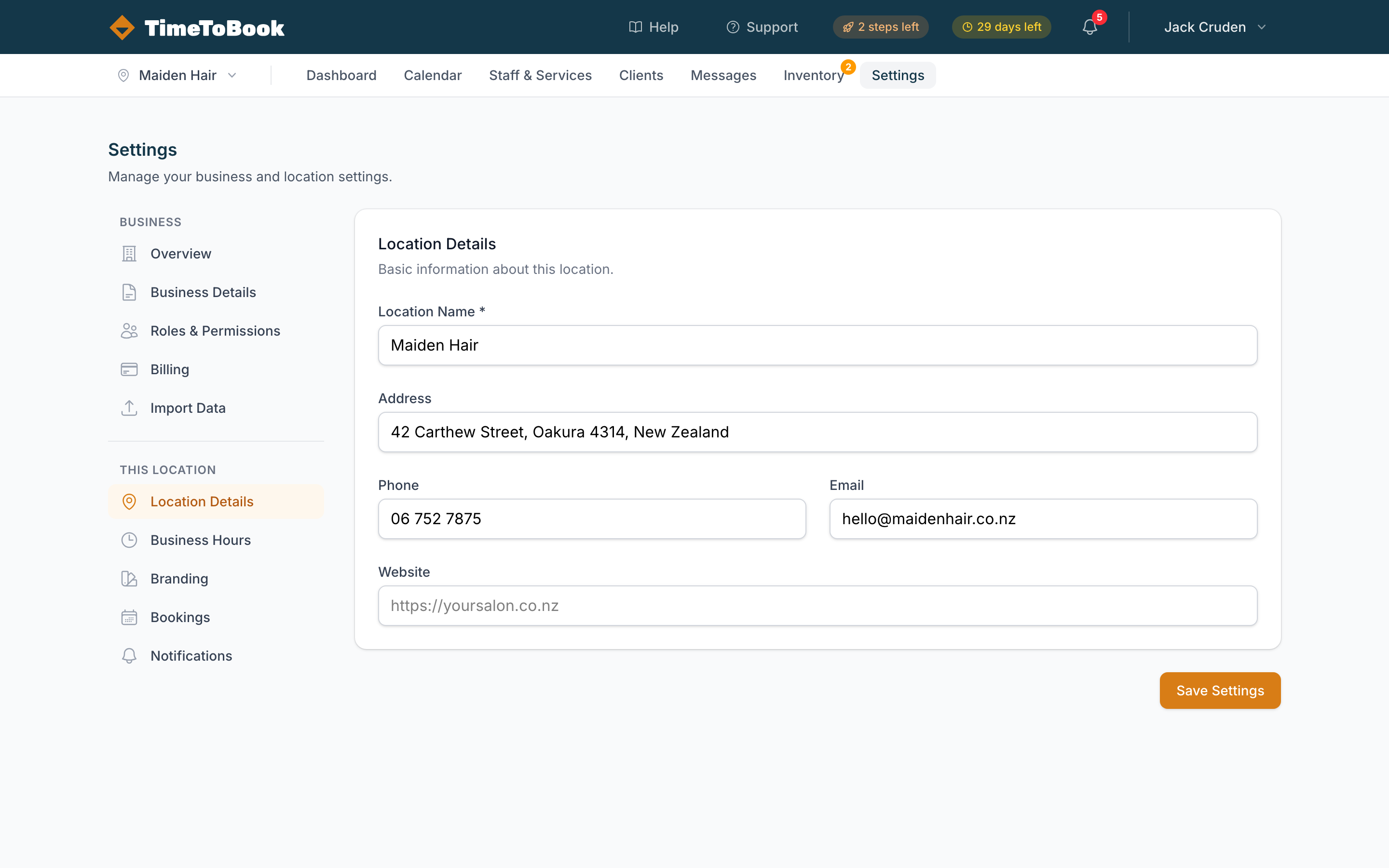
Business settings
These apply across every location you run (most users have just one).
- Overview: how your business is organised, with your plan, owner, staff and client counts, and your locations.
- Business Details: Business Name, Region and Timezone. Your region sets your currency and can't be changed here; contact support if it's wrong.
- Roles & Permissions: define what each role on your team can see and do.
- Billing: plan, payment method, invoices, and SMS credit top-ups.
- Payments: online payments. See Online payments.
- Import Data: bring in bookings from any system using a CSV file, or clients and client notes from Timely CSV exports. There's no services import, so add services yourself in Staff & Services. See Importing bookings.
Location settings
These apply to the current location only. Switch locations using the location switcher at the top of the left sidebar.
Location Details
Location name, address, phone, email, and website. Your address appears on your booking page (see Address Visibility below) and in confirmation and reminder emails. Your phone number is used for the "call the salon" button clients see on their booking. Your email is where New Booking Alert emails go.
Business Hours
Weekly opening hours. These double as the default staff hours: anyone whose schedule is marked "inherited" uses these times. Override per staff member in Staff & Services. If you open on a two-week rota, tick Different hours every other week to set a Week A and a Week B that take turns.
Booking Page
Everything about your public booking page in one place. Click Save Settings at the bottom when you're done.
- Enable booking page: take the page offline temporarily if you need to. Your booking URL and a Preview link are shown here too.
- Branding: upload a logo (PNG, JPG or SVG, max 2MB) and pick a Primary Color for buttons and accents. If you upload a logo, it's shown at the top of your booking page in place of your location name.
- Booking Page Notice: display a message at the top of your booking page (e.g. holiday closures or special offers). Leave empty to hide.
- Address Visibility: choose Full address, General area only (city and region), or Don't show an address. This only changes the booking page. Clients always get your full address in their confirmation.
- Booking Rules:
- Maximum days in advance: how far ahead clients can book.
- Minimum notice required: how soon before an appointment clients can book (e.g. at least 2 hours before).
- Same-day bookings: when this is off, clients can't book for today; the earliest day they can pick is tomorrow. To stop bookings only a few hours ahead while still allowing same-day ones, use Minimum notice required instead.
- Cancellation notice: how far ahead clients can cancel online, or Disabled to stop online cancellations. See Client self-service cancellations.
Notifications
Changes here save automatically.
- New Booking Alert: an email to your location's email address each time a client books online. Off by default, and it needs an email in Location Details. There's no SMS alert for new bookings.
- Booking Confirmation: sent to the client as soon as a booking is made, by Email (on by default) and SMS (off by default, needs credits).
- Reminders: sent to the client before the appointment. New locations start with one email reminder 1 day before. Click Add reminder to add another, choose a time from 1 hour to 1 week before, and tick Email, SMS or both. At the moment each booking gets one reminder: the earliest one still to come when the booking was made.
- Message Templates: write your own wording. See Customising confirmation and reminder messages.
Your own alerts as a team member (cancellations, upcoming appointments, SMS credits) are set per person in Account → Notifications.
Changing your timezone
Your business has one timezone, set under Business Details. If the device you're using is set to a different timezone, TimeToBook shows a blue banner at the top of the app with an Update timezone button, because a 10am booking means something very different in London versus Auckland.
If the banner appears because you're travelling, you can ignore it. If your business timezone is wrong, change it in Settings → Business Details.
Still stuck?
Our support team is ready to help.