Service assignments
The staff-versus-services grid: who can perform what, custom prices and durations per staff member, and price tiers.
Not every stylist does every service. Juniors don't usually do balayage. Emma might be the only person trained on extensions. The Assignments tab on the Staff & Services page is where you tell TimeToBook exactly who can perform what, and optionally charge different prices for it.
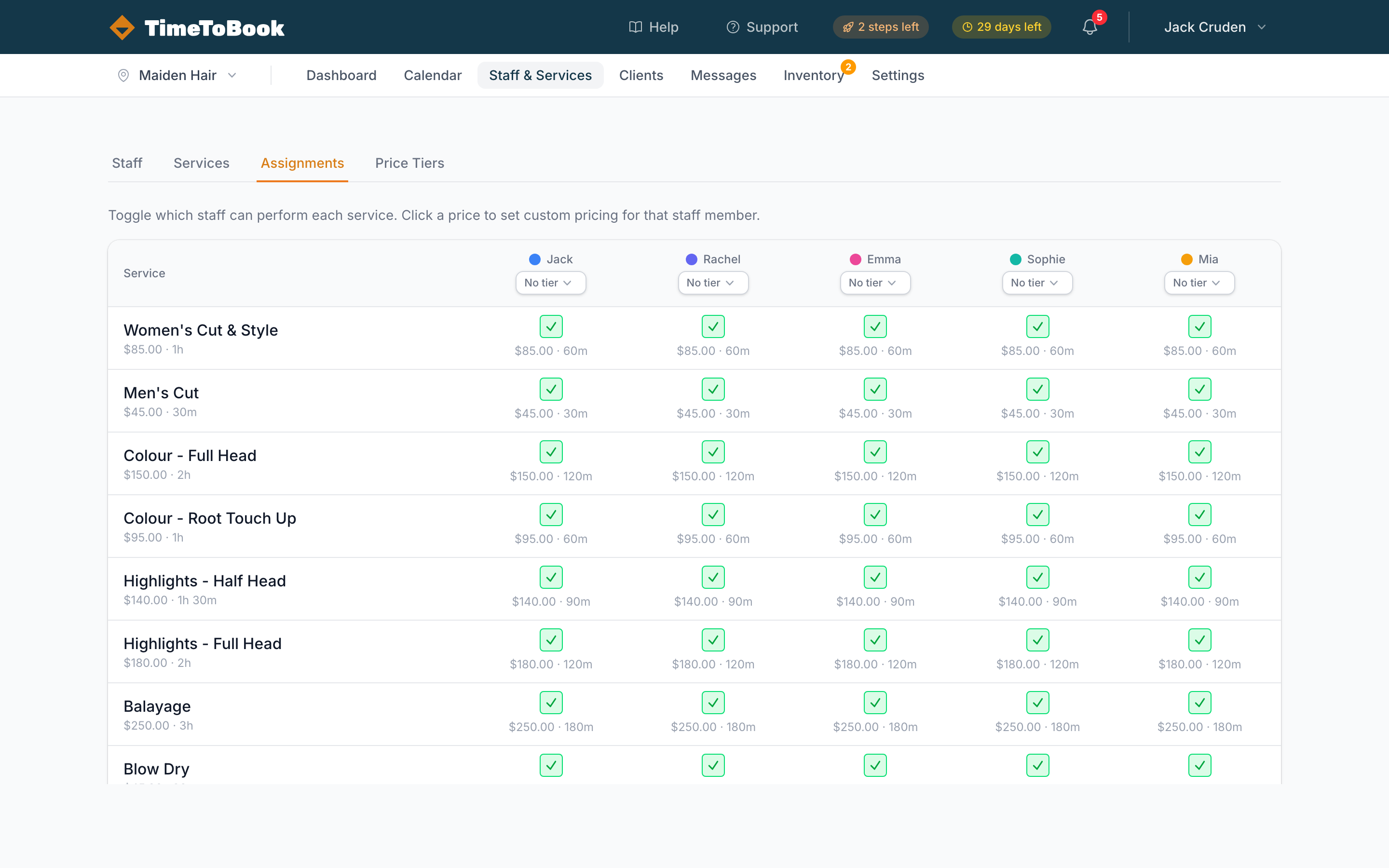
The grid
Services run down the left side, grouped by category. Your bookable staff run across the top, each with their colour dot and a price tier dropdown. Staff who aren't bookable don't appear here.
Every cell in the middle is a tick box: ticked means that staff member can perform that service, unticked means they can't. Click a box to switch it.
When a service is unticked for a staff member, clients can't book that service with them on your public booking page.
New services are automatically ticked for every bookable staff member, and new bookable staff are ticked for every service. You only need to visit the Assignments tab if you have specialists, juniors, or anyone who doesn't do the full menu.
There's no button to tick or untick a whole row or column at once, so click each box you want to change.
Custom prices and durations per staff member
Under each ticked box you'll see that staff member's price and duration for the service. Click it to open Custom Pricing, where you can set:
- Override Price: what this staff member charges for this service.
- Override Duration: how long it takes them, in minutes (e.g. a senior stylist might do a cut in 30 minutes where a junior takes 45).
Leave a field blank to use the normal price or duration. Click Clear overrides to remove both. Cells with an override are highlighted.
An override price takes priority over the staff member's price tier for that service.
Price tiers (the fast path)
If you have several staff on the same rate, use Price Tiers instead of setting each price individually:
-
On the Price Tiers tab, click Add tier. Give it a name and choose an Adjustment type:
- Percentage: e.g.
Seniorat20%. The adjustment scales with each service's base price, so a$100cut becomes$120and a$200colour becomes$240. - Flat amount: e.g.
Seniorat15. The same amount is added to every service, so a$100cut becomes$115and a$200colour becomes$215.
Use a negative number for a lower rate, e.g. for juniors.
- Percentage: e.g.
-
Back on the Assignments tab, pick the tier from the dropdown at the top of each staff column. You can also set it from the Price Tier field when editing a staff member.
-
Every service that staff member performs is priced at the adjusted rate, unless you've set an override price for that service.
Use Percentage when you want premium staff to earn more on premium services. Use Flat amount when the difference should be the same across everything.
Tiers are much faster than clicking every cell. Use them for most staff, and per-cell overrides for the odd exception.
Tips
- Untick your specialist services. It's easy to forget the grid exists because everything is ticked by default. If you have even one specialist service (lash lift, keratin treatment), the Assignments tab stops clients booking it with the wrong stylist.
- Don't create duplicate services for different prices. If "Cut Senior" and "Cut Junior" both exist on your Services tab, use one service with price tiers or overrides instead.
- Check your booking page. After changing assignments, open your public booking page and walk through a booking to confirm the right staff show up for the right services.
Still stuck?
Our support team is ready to help.