The Dashboard
How to read the Dashboard: today's schedule, revenue, new clients, no-show rate, and the Revenue, Operations and Clients tabs.
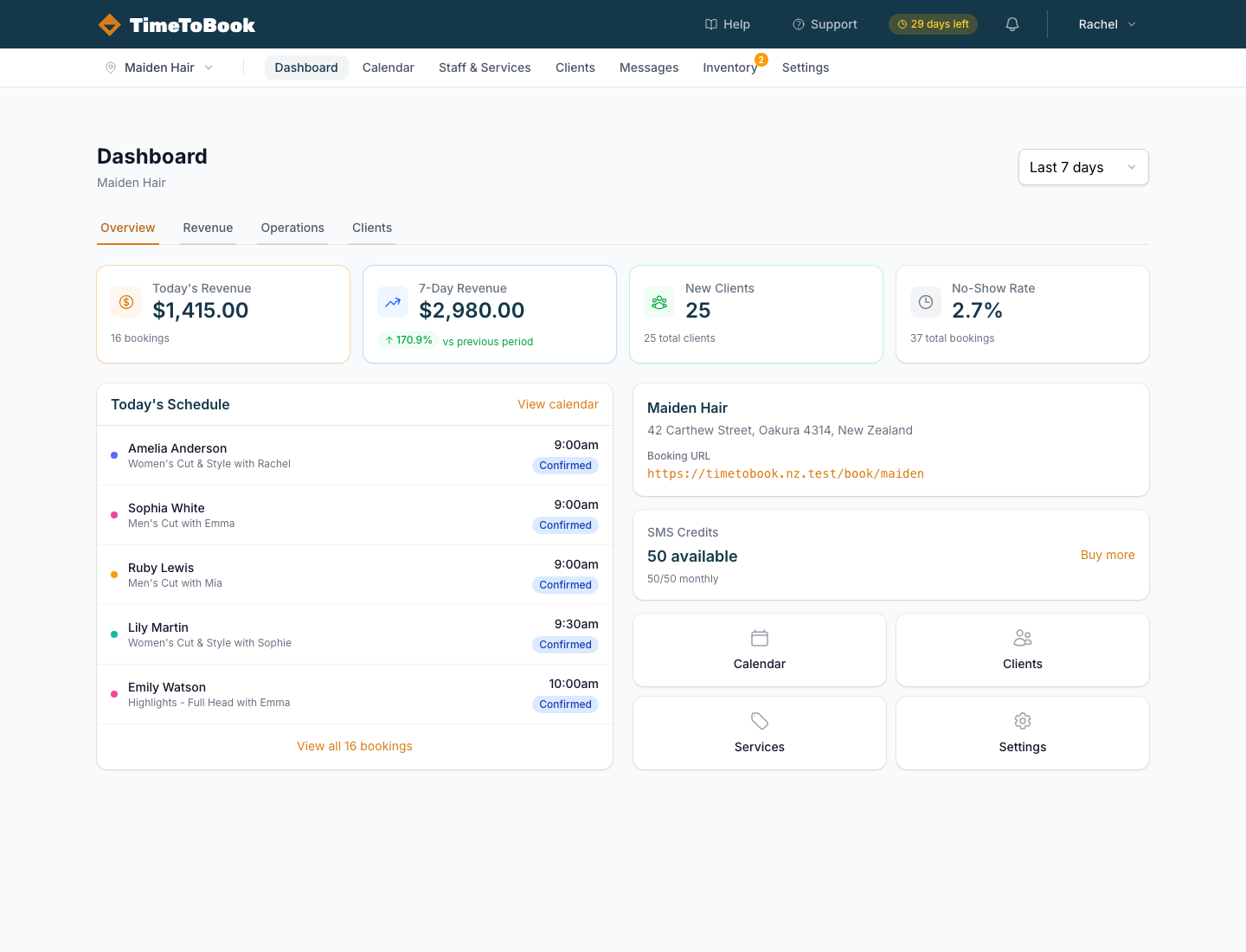
The Dashboard is the first screen you see after signing in. It answers three questions: what's on today, how's business going, and is there anything I need to deal with?
Choosing a period
The dropdown in the top-right of the Dashboard sets the time period for the stats: Last 7 days, Last 30 days or Last 90 days. All four tabs use the same period, so switching tabs keeps you on the same window of time.
Those three are the only options. There's no yearly view or custom date range yet.
Tabs: Overview, Revenue, Operations, Clients
Overview
The default tab. Four cards along the top:
- Today's Revenue: the value of today's bookings, with how many bookings that is.
- 7-Day Revenue (or 30 or 90, depending on the period): revenue for the period, compared with the period before.
- New Clients: new clients in the period, plus your total number of clients.
- No-Show Rate: the share of bookings in the period marked as no-shows. It turns red above 10%.
Below the cards:
- Today's Schedule lists today's bookings in time order, with the client, service, staff member, start time and a status pill. Click View calendar to jump to the Calendar.
- Your location card shows your location name, address and Booking URL. This is the link clients use to book. Click it to open your booking page in a new tab.
- An SMS Credits card, if you have text credits, with a Buy more button.
- Quick links to Calendar, Clients, Services and Settings.
Revenue
Where your money came from in the period:
- Today's Revenue, period revenue, Total Bookings and Avg Booking Value.
- Revenue Trend: a chart of revenue over the period.
- Top Services and Top Staff: who and what brought in the most.
Revenue here is worked out from the prices on your bookings. It isn't a record of money actually paid.
If you can manage payments, you'll also see a Payments card with an Export CSV button. It only covers card payments taken through TimeToBook. Online payments and Tap to Pay are still coming soon, so for now this card shows zero and the export has no payments in it.
Operations
How smoothly the salon is running:
- Completion Rate: the share of bookings marked completed.
- No-Show Rate: turns red above 10%.
- Cancellation Rate: turns amber above 15%.
- Total Bookings in the period.
- Booking Status Breakdown: a chart of confirmed, completed, no-show and cancelled bookings.
- Bookings by Day of Week: when bookings actually happen, so you can spot quiet days.
- Tips to improve your rates: appears when your no-show rate is above 10% or your cancellation rate is above 15%.
Clients
The retention view:
- Total Clients, New Clients, Returning Clients (clients with 2 or more bookings) and Return Rate.
- New Clients Over Time: a chart of new clients across the period.
- Client Insights and Tips to Grow Your Client Base, with a link to your booking page.
The Getting Started checklist
For the first 14 days after you finish setup, a Getting started checklist sits at the top of the Dashboard. See Getting started.
Still stuck?
Our support team is ready to help.