Managing staff
Add staff, set their working hours, control which services they can perform, and archive staff when they leave.
The Staff & Services page is where you manage your team. Every bookable staff member is listed here, along with their role, working hours, price tier, and status.
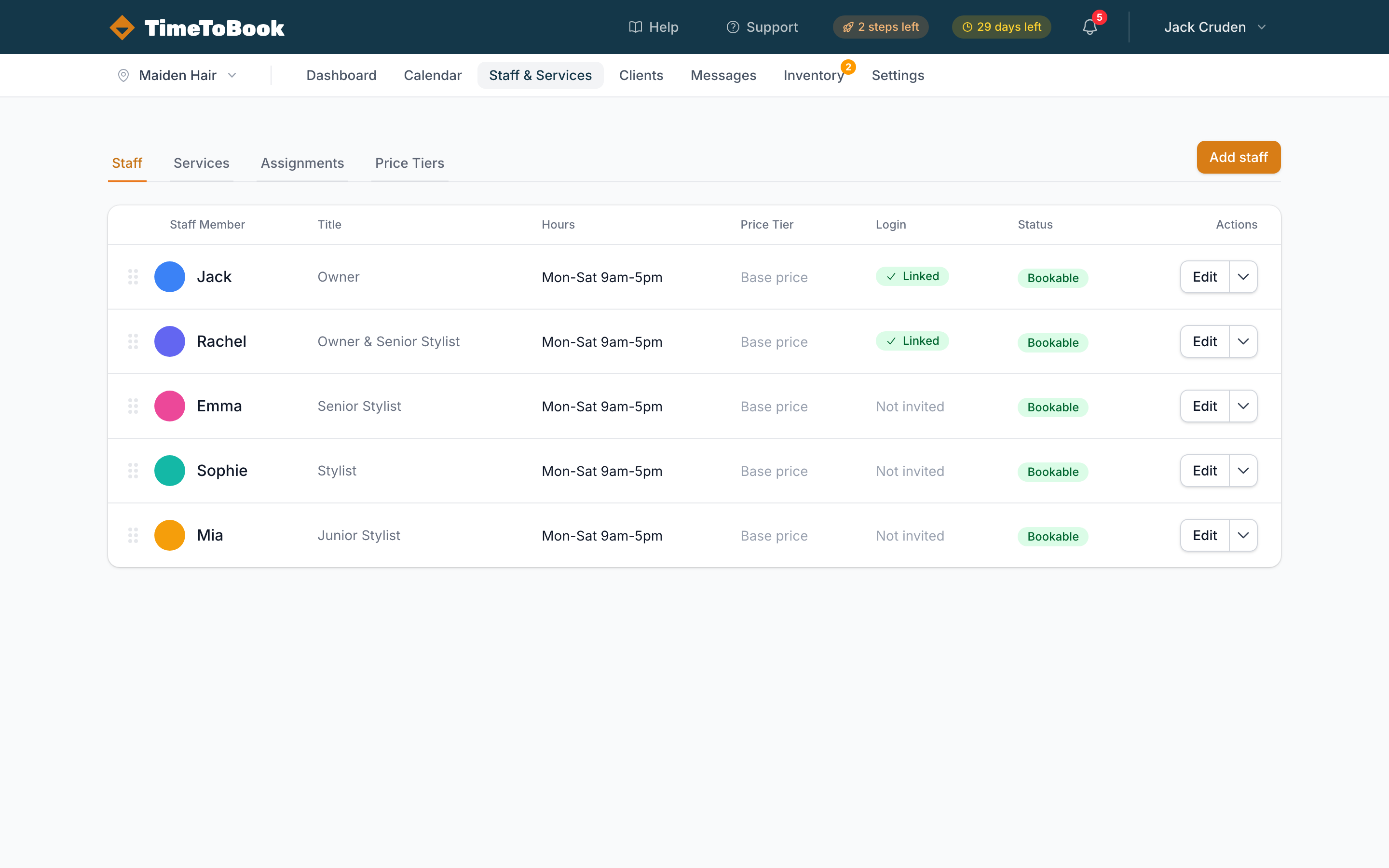
Adding a staff member
Click Add staff (top right) and fill in:
- Name — how they appear on bookings and the public page.
- Title — optional; "Senior Stylist", "Colour Specialist", etc.
- Email — if you enter one, they'll be invited to create a login for their own calendar.
- Colour — a calendar dot colour to distinguish them.
- Bookable — leave on for anyone clients can book directly. Turn off for apprentices or front-of-house staff who shouldn't appear on the booking page.
Working hours
Each staff member has their own weekly working hours. By default new staff inherit the location's business hours ("inherited" in the Hours column). Click Edit to override — useful for part-timers, Saturday-only stylists, or owners who only work certain days.
Hours can also include breaks (e.g. 12:00–13:00 lunch) and one-off time off (dentist appointment next Tuesday, holiday for two weeks).
Logins
If you added an email to a staff member, they can sign in using the magic link flow — no passwords to manage. Once signed in, they see:
- The calendar, scoped to their own appointments.
- Their own upcoming schedule.
- The ability to edit their own working hours.
- No access to settings, billing, or other staff.
Owners and managers see everything; individual staff see only what's relevant to them.
Price tiers
If staff charge different rates, assign each a Price Tier (see Setting up services). The tier sets their prices for every service in one go, rather than editing service-by-service.
Archiving a staff member
When someone leaves, don't delete them — archive instead. This:
- Hides them from the public booking page and calendar.
- Keeps their booking history intact for reporting.
- Preserves revenue stats.
- Drops them from your billable seat count.
Find Archived Staff below the active list on the Staff tab. Click to expand, then Restore if they ever come back.
Archiving a staff member lowers your bill at the next monthly cycle — only active bookable staff count toward per-seat pricing.
Going solo
Running by yourself? You don't need to do anything special. A single active staff member (you) is always free — just make sure your own name is in the Staff list so clients can book you.
Still stuck?
Our support team is ready to help.