Setting up services
Create the services you offer, set durations and prices, and control who can perform them.
Services are the heart of your booking page. Each service has a name, a description, a duration, and a price — and that's what clients see when they book.
Head to Staff & Services in the top navigation. There are four tabs: Staff, Services, Assignments, and Price Tiers.
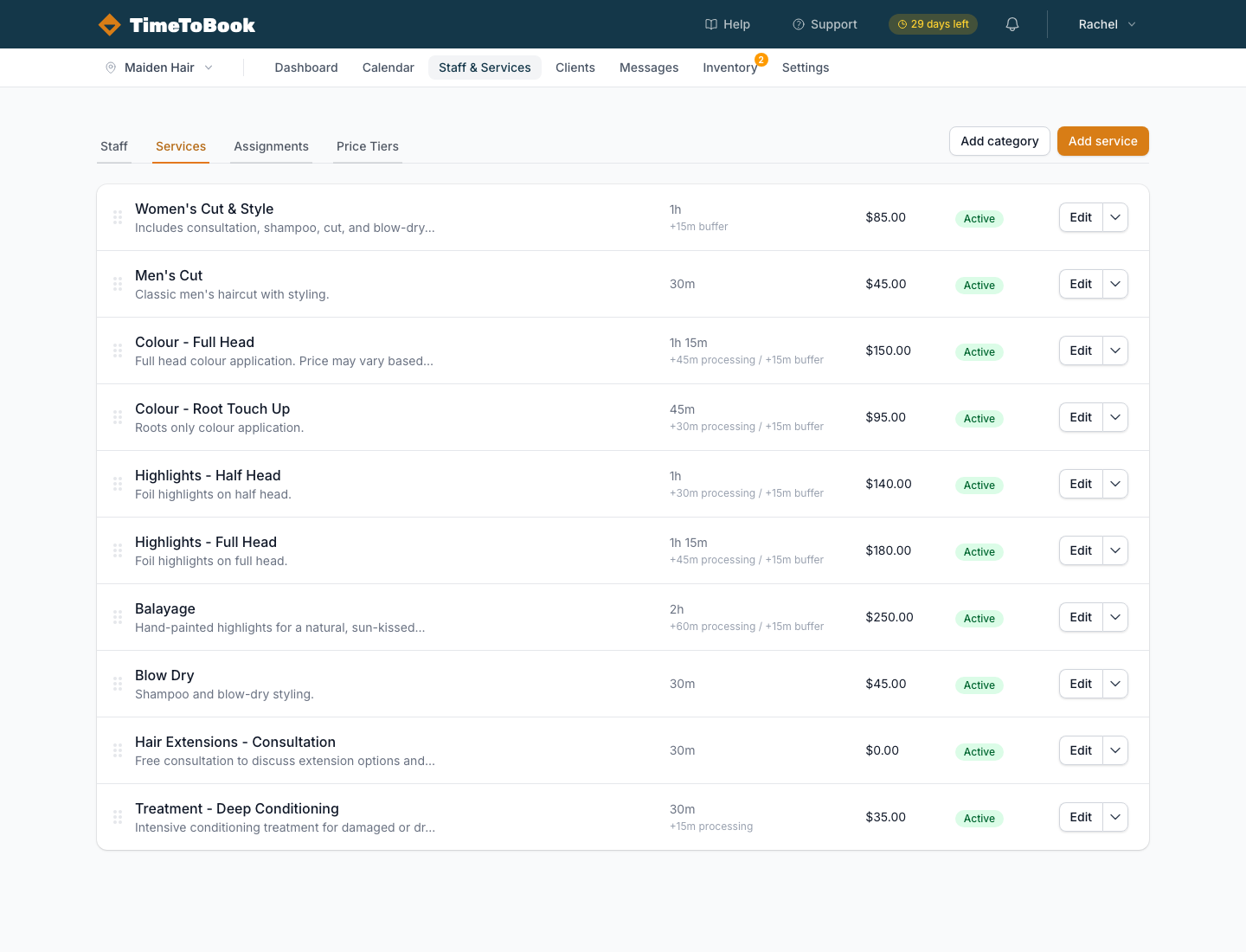
Creating a service
Click the Services tab, then Add service. Fill in:
- Name — what clients see, e.g. "Women's Cut & Blow Dry".
- Description — optional; a short line helps clients self-select.
- Duration — how long the appointment takes, in minutes.
- Price — in your location's currency (set per location).
- Processing time — optional. Hands-off minutes in the middle of the service (e.g. colour developing). The station is still blocked, but the stylist can take another client during that window.
- Buffer — optional. Time after the service that's blocked off for cleanup but doesn't count in the client-facing duration.
What clients see vs what you see
The duration a client sees on the booking page includes processing time (because it affects how long they're in the chair) but excludes buffer time (because that's your cleanup window, not theirs).
On the calendar, bookings show the full footprint: service + processing + buffer. Processing shows as a hatched block inside the booking; buffer shows as a lighter block after.
Processing time vs multi-service bookings
This is the one that trips people up. Both involve "hands-off" time, but they model two different things:
- Processing time on a single service — use when the same service has a developing or waiting phase in the middle. A root touch-up that's 30 min of application, 45 min of developing, then 15 min of rinse/finish is one service with 45 minutes of processing.
- A multi-service booking — use when it's two distinct services back-to-back. A colour and a haircut is two services added to the same booking — even if the cut slots into the colour's processing window.
The practical difference: processing time on a single service means one invoice, one service name on the calendar. A multi-service booking shows both services chained together and priced separately.
If a client wants a retouch with a cut afterwards, book both services in one multi-service booking — the cut naturally lands during (or after) the retouch's processing window, and your calendar shows both.
Active vs inactive
Every service has an is active toggle. Deactivating a service hides it from the public booking page without deleting it. Use this for seasonal offerings or services you're phasing out.
Assignments — who can do what
On a multi-staff team, not everyone does every service. The Assignments tab is a simple grid: staff down the side, services across the top, tick boxes in the middle. Check a box to say "Emma can do highlights"; leave it unchecked to hide the service from Emma's bookable staff list.
By default every new staff member can do every active service, so you only need to touch this if you have specialists.
Price Tiers
If a senior stylist charges more than a junior, that's a price tier. Under Price Tiers you can:
- Create named tiers (e.g. Senior, Director, Junior).
- Assign a tier to each staff member.
- Set tier-specific prices for each service.
On the public booking page, clients see the tier pricing when they pick a specific staff member. If they pick any available, the lowest price is shown.
Tips
- Keep service names short and recognisable. "Women's Cut" beats "Ladies Precision Cut & Wet Service".
- Use descriptions to explain what's included, not to upsell.
- If you're not sure about duration, round up by 10 minutes. It's easier to finish early than to run late.
- For bundle offers (cut + colour), use multi-service bookings rather than creating a duplicate "Cut & Colour" service — it keeps your service list tidy and gives clients the flexibility to pick-and-mix.
Still stuck?
Our support team is ready to help.