Service assignments
The staff-versus-services matrix — who can perform what, custom prices per staff, and price tier overrides.
Not every stylist does every service. Juniors don't usually do balayage. Emma might be the only person trained on extensions. The Assignments tab on the Staff & Services page is where you tell TimeToBook exactly who can perform what — and, optionally, charge different prices for it.
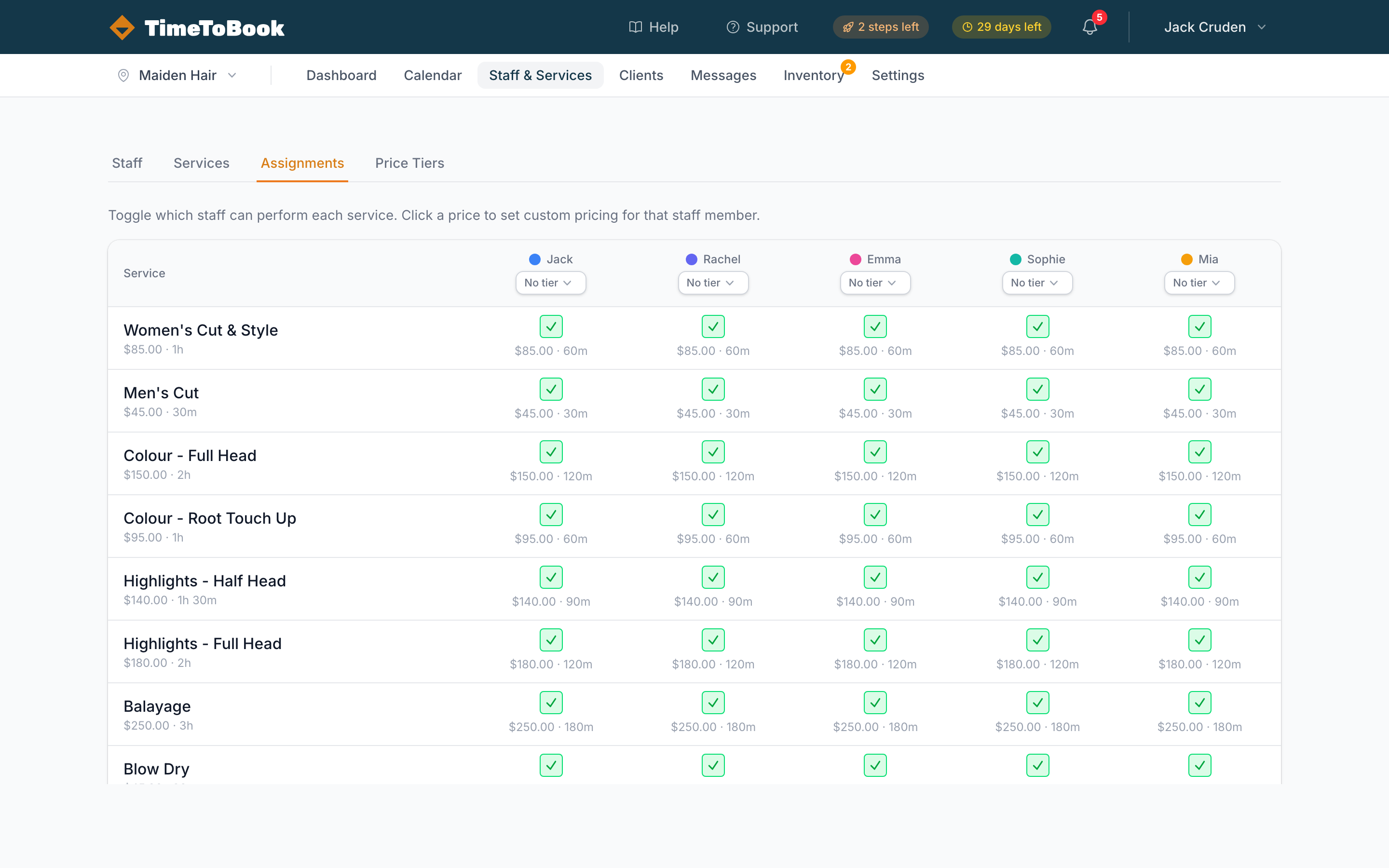
The matrix
Services run down the left side, grouped by category. Your bookable staff run across the top, each with their colour dot and a price-tier dropdown. Every cell in the middle is a toggle: tick means that staff member can perform that service, untick means they can't.
When a service is unticked for a staff member, that combination is hidden from the public booking page — clients will never see it as an option.
By default, every new staff member is enabled for every active service. You only need to visit the Assignments tab if you have specialists, juniors, or anyone whose skillset is narrower than the full menu.
Toggling a whole row or column
- Enable every staff member for a service — click the service name on the left and use the bulk action. Handy when you add a new service and want everyone to offer it.
- Disable every staff member for a service — same menu, opposite action. Useful when you're phasing a service out but don't want to delete it yet.
- Enable every service for a staff member — just tick each cell. (A fast one-click row action is on the roadmap.)
Custom prices per staff member
Below each ticked cell, you'll see a small price + duration pair. Click it to open an override modal where you can set:
- Custom price — what this staff member charges for this service, in cents.
- Custom duration — how long it takes them (e.g. a senior stylist might do a cut in 30 minutes where a junior takes 45).
Leave both blank to use the service's default values.
Overrides are per-staff, per-service, so a senior can charge $120 for a cut while a junior charges $85 for the same service, all without creating duplicate services.
Price tiers (the fast path)
If you have several staff on the same rate (e.g. three seniors at +$20 over the base price), use Price Tiers instead of setting each price individually:
- Create a tier under the Price Tiers tab (e.g.
Seniorwith+20%). - Back on the Assignments tab, pick the tier from the dropdown at the top of each staff column.
- Every service that staff member performs is automatically priced at base × tier adjustment.
This is much faster than clicking every cell. Use tiers for the 80% case and per-cell overrides for the odd exception.
Tips
- Start by disabling the specialists. New users often forget the matrix exists because it's "all ticked by default." If you have even one specialist service (lash lift, keratin treatment), the Assignments tab is the difference between a clean booking page and clients booking the wrong stylist.
- Don't create duplicate services for different prices. If "Cut – Senior" and "Cut – Junior" both exist in your Services tab, delete them and use price tiers or overrides instead. One clean service per service; different prices via assignments.
- Check the preview. After changing assignments, open your public booking page and walk through a booking to confirm the right staff show up for the right services.
Still stuck?
Our support team is ready to help.