Your account
Profile details, notification preferences, security, and how to use magic link sign-in.
Your account sits above the locations you manage — one account can own or manage multiple locations. Open the Account section from the user menu in the top-right of the app.
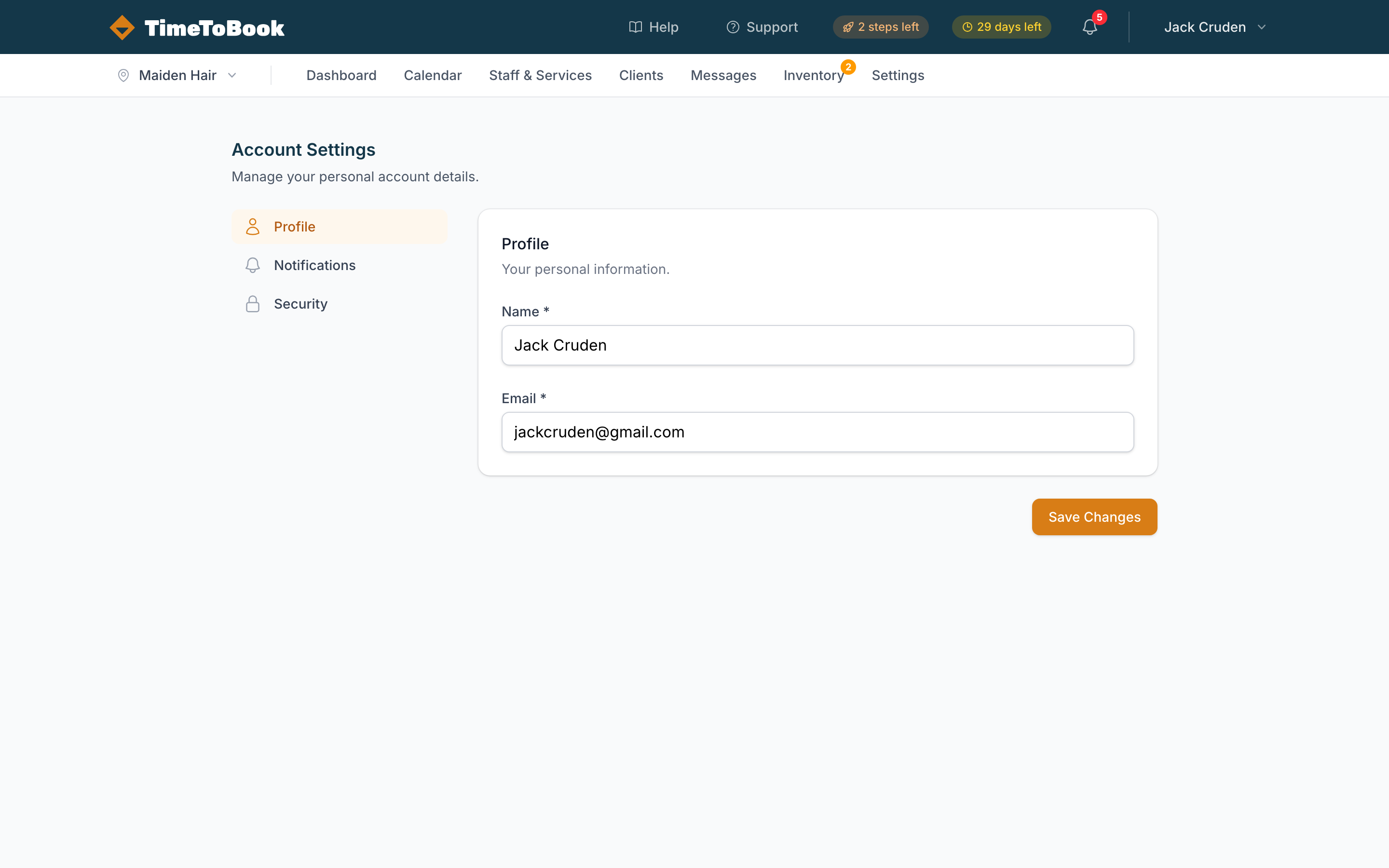
Profile
Your name, email, phone, and personal timezone. Your email is the address we use for magic-link sign-in and account-level notifications.
Changing your email updates your login immediately — the next time you sign in, use the new address to request the link.
Notifications
Choose how you want to be notified about activity on your locations:
- New bookings — email and/or SMS to you personally.
- Cancellations — get pinged when a client cancels.
- Daily digest — a single morning email summarising the day ahead.
- Weekly summary — revenue, bookings, and trends for the last week.
Each channel can be toggled independently. If you run multiple locations, you'll get notifications for all of them — location-level notifications (to a shared address) are configured under Settings → Notifications for each location.
Security
TimeToBook uses magic link sign-in instead of passwords. When you want to sign in:
- Enter your email on the login page.
- Check your email for a link.
- Click the link.
- You're in.
This is deliberately simple — no passwords to remember, reset, or leak. Links expire after 30 minutes and can only be used once.
For shared devices (e.g. a front-desk computer), use Account → Security → Sign out all sessions after a staff change.
Multiple locations
If you own or manage more than one location, you'll see a location switcher in the top-left of the app. Click it to jump between locations. The switcher is grouped by business — each business owns one or more locations, and each location has its own calendar, staff, clients, and settings.
To add a new location to an existing business, open the switcher and click Add location. To start a brand new business (with its own billing), click New business at the bottom of the switcher.
Deleting your account
Need to delete your account entirely? Contact support — we'll confirm, then delete your account, locations, and all related data. This is permanent and can't be undone.
Still stuck?
Our support team is ready to help.