Location settings
Where to find business details, hours, branding, booking rules, and notification preferences for each location.
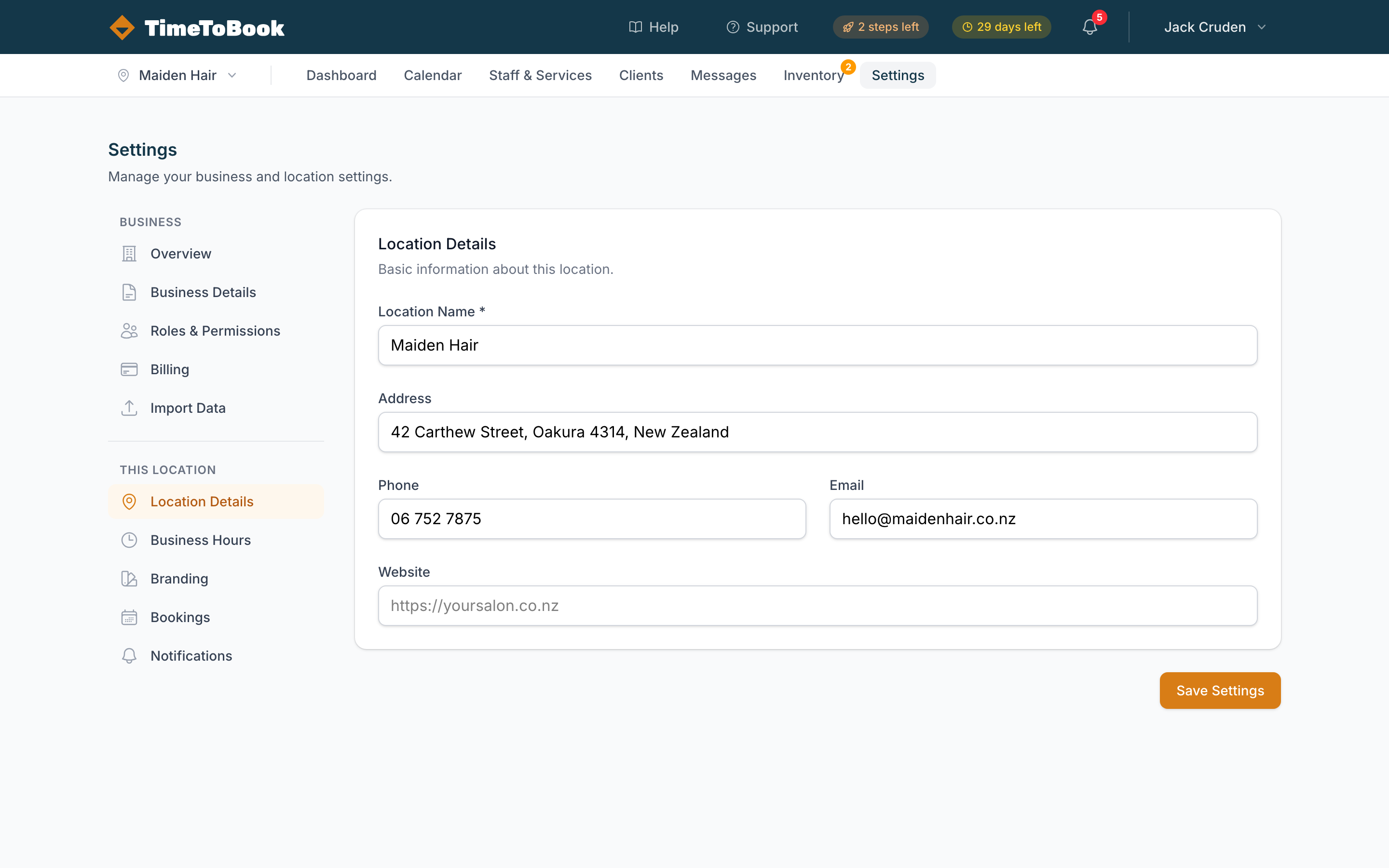
All location-specific configuration lives under Settings. The page is split into two groups in the left sidebar:
- Business — settings that apply to your whole business (all locations).
- This Location — settings for the current location only.
Business settings
These apply across every location you run (most users have just one).
- Overview — a summary of your plan, staff count, and subscription.
- Business Details — your business name, legal entity, tax details, and default timezone.
- Roles & Permissions — define what owners, managers, and staff can see and do.
- Billing — plan, payment method, invoices, and SMS credit top-ups.
- Import Data — bring in clients, services, or bookings from another system via CSV.
Location settings
These apply to the current location only. Switch locations using the dropdown in the top-left of the app.
Location Details
Name, address, phone, email, and website. This is the info clients see at the top of your booking page and on confirmation emails.
Business Hours
Weekly opening hours. These double as the default staff hours — anyone whose schedule is marked "inherited" uses these times. Override per-staff member in Staff & Services.
Branding
Upload a logo, pick a primary colour, and preview your booking page live. Keep the logo square or wide — not tall — and under 1MB for fastest loading.
Bookings
Rules for how your public booking page behaves:
- Minimum notice — how far in advance a client must book (e.g. "at least 2 hours before").
- Maximum advance — how far ahead bookings are allowed (e.g. "up to 12 weeks out").
- Buffer between bookings — default buffer applied to all services.
- Allow cancellations — whether clients can cancel their own bookings.
- Pause booking page — a kill switch that takes the page offline temporarily.
Notifications
Who gets notified when a new booking comes in, and on what channel. Usually you'll want SMS to your mobile and email to your business address.
Changing your timezone
Your location has a timezone (set under Business Details) and your account has a timezone (set under your profile). If they don't match, TimeToBook shows a warning banner at the top of the app — because a 10am booking means something very different in London versus Auckland.
To change the location timezone: Settings → Business Details. To change your personal timezone: Account → Profile.
Still stuck?
Our support team is ready to help.