Your public booking page
The page clients use to book themselves in — the four steps, multi-service selection, and how to customise it.
Your public booking page is the URL you share with clients. It's the single most important thing on TimeToBook — it's how you actually take bookings without picking up the phone.
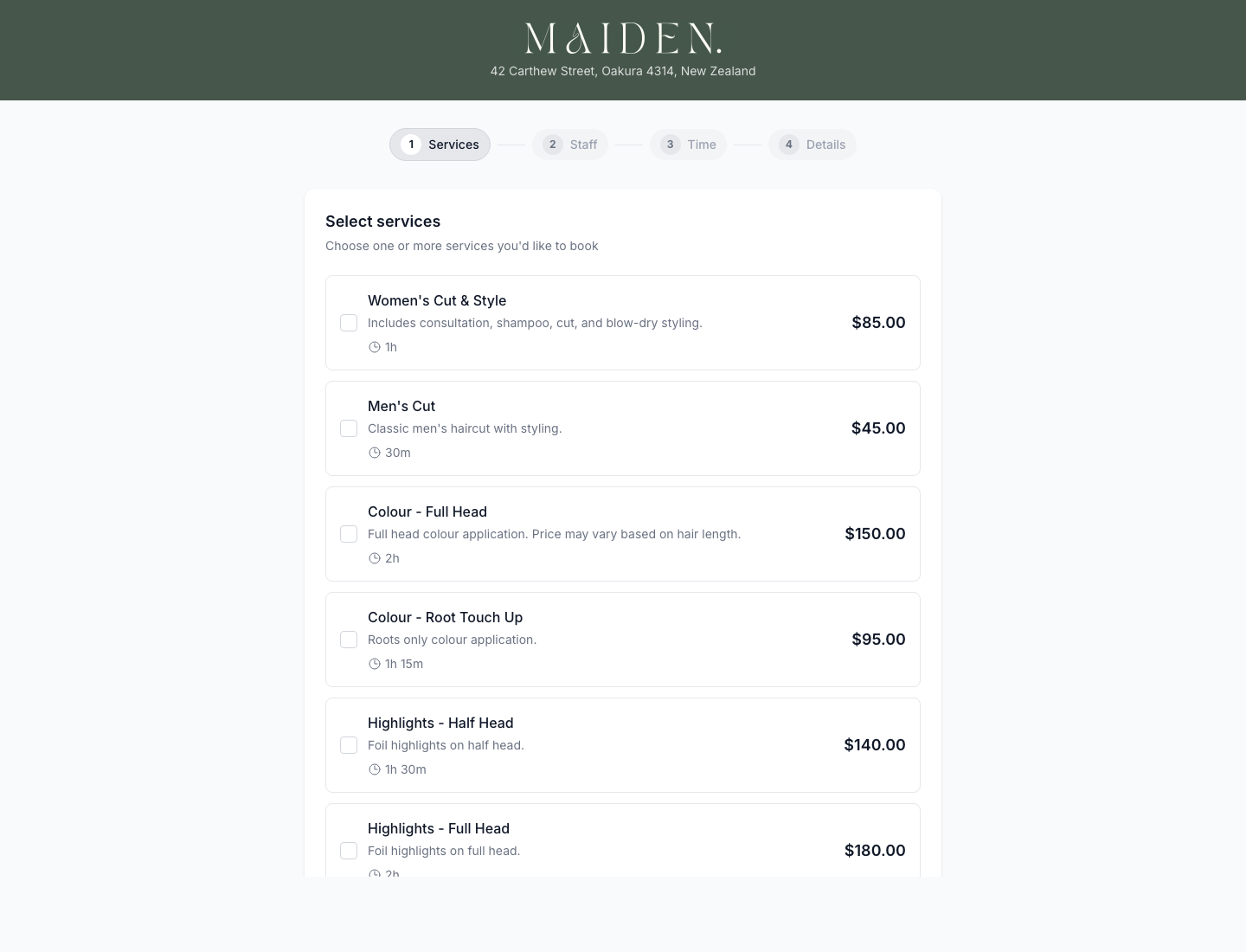
The four steps
The booking page walks clients through four steps in order:
- Services — pick one or more services.
- Staff — pick a specific stylist or "first available".
- Time — pick a date and time from the available slots.
- Details — name, email, phone, and confirm.
That's it. No account creation. No password. No spam.
Step 1: Services
Clients see every active service for your location, with its client-facing duration and price. Each service is a tappable row with a checkbox — clients can select one or more services in a single booking.
When multiple services are selected:
- The total duration updates in real time.
- Step 2 only shows staff who can perform all of the selected services.
- Step 3 books the services back-to-back as a sequential chain.
Step 2: Staff
Clients see the staff who can perform their selected services, each with a photo (if uploaded) and title. They can also pick "First available" — the fastest route to a booking if they're not fussy.
Staff with different price tiers show their own prices on this step, so clients aren't surprised later.
Step 3: Time
Clients pick a date, and the page shows available start times for the full service chain. Slots are calculated live from the staff member's working hours, existing bookings, and the total duration needed.
Slots inside another booking's processing time are fair game. If Emma has a colour with 45 minutes of developing time starting at 10:00, a client picking a 30-minute service will still see 10:30 as a bookable slot — because Emma's hands are free during that window. This is invisible to the client; they just see an available time.
Step 4: Details
Name, email, phone, and an optional note. We look up existing clients by email or phone to avoid creating duplicates. After they confirm:
- A confirmation email goes out immediately.
- The booking lands on your calendar in real time.
- An email reminder goes out 24 hours before the appointment.
If you've topped up SMS credits, a confirmation and reminder SMS also go out.
Customising the look
Your booking page inherits your location's branding — logo, colours, address, and contact info. To update it:
- Go to Settings → Branding.
- Upload a logo (PNG or SVG, square works best).
- Pick a primary colour that matches your brand.
- Save.
The change is live on your booking page immediately.
Previewing as a client
Before you share your URL publicly, walk through it yourself to see exactly what your clients will see. The booking page is public — you don't need to log out, just open your URL in a new tab (or a private window) and tap through it like a client would.
Your URL is on the Dashboard under Booking URL. You can even complete a test booking using your own name and email — it'll land on your calendar like any other booking, and you can delete it afterwards. This is the fastest way to sanity-check services, pricing, staff availability, and branding before going live.
If your booking page is currently toggled off (under Settings → Bookings), turn it on before previewing — otherwise visitors including you will see the "temporarily unavailable" message.
Sharing your booking URL
Your URL looks like https://timetobook.app/your-slug. Where to put it:
- Instagram bio — the single most effective place.
- Google Business Profile — under "Appointments" or "Website".
- SMS signature — if you still get phone enquiries.
- Your website — a single "Book now" button.
- TikTok bio — if that's where your clients are.
Closing the page
Need to pause online bookings temporarily? Go to Settings → Bookings and toggle the page off. Clients visiting the URL will see a "temporarily unavailable" message.
Still stuck?
Our support team is ready to help.